01
Detection in the in-app browser
Browse normally, and Modesona recognises when you are on a product page.
IMPORT FROM WEB STORES
Browse a store inside the app, and when Modesona detects a product page, bring its image into the same scan flow you use for your own closet.
→ 01 / WHY TYPE IT TWICE
Adding an online purchase by hand means retyping what the store already published. The in-app browser spots the product page and hands the image to the scan flow instead.
01
Browse normally, and Modesona recognises when you are on a product page.
02
Send the product into your closet as an item, or into a try-before-you-buy comparison.
03
The usual item screen appears, so you confirm the category, colour, and style as you would for a camera scan.
→ 02 / FROM PRODUCT PAGE TO CLOSET
Importing ends in the same review step as a camera scan, which is why an online piece gets described the same way as everything else you own.
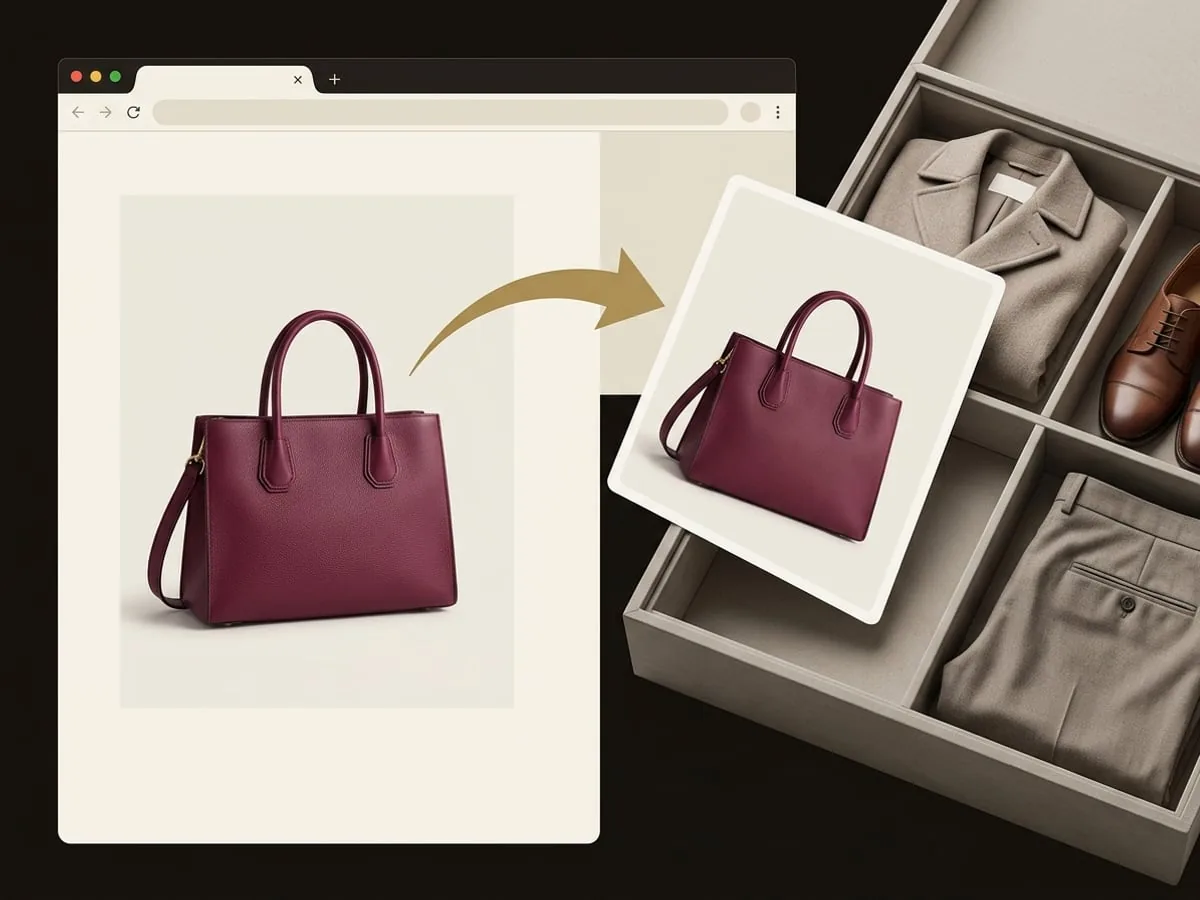
→ 03 / HOW IT WORKS
Nothing about the import skips the step where you decide how the piece is described.
Open the store inside Modesona’s browser and find the piece you are interested in.
When a product page is detected, send its image into the scan flow.
Save it as a closet item, or compare it with your wardrobe before you decide to buy.
→ 04 / WHAT IMPORTING DOES
Importing a product brings an image into Modesona so you can describe or compare the piece. It does not buy anything and does not make Modesona a party to the transaction.
Importing a product never places an order. Buying still happens on the retailer’s own site.
Price, availability, sizing, and delivery are the retailer’s details, and they can change after you import.
Some stores lay out product pages in ways the in-app browser cannot read. Photographing the product still works.
As with a camera scan, you confirm the category, colour, and style before the piece joins your closet.
→ 05 / QUESTIONS, ANSWERED
How the import works, which stores it covers, and what it does not do.
Open the store in Modesona’s in-app browser. When a product page is detected, you can bring the product image into the same scan flow used for your closet.
No. It only brings an image into Modesona. Any purchase happens on the retailer’s own site.
Detection depends on how a store builds its product pages, so it will not work everywhere. When it does not, you can photograph the product instead.
Yes. Send the import into a try-before-you-buy comparison to see what it would pair with in your closet, or add it as an item if you already own it.
You are cordially invited
Modesona is your personal stylist — free, instant, and built around everything already hanging in your wardrobe.


Free · No card required · iOS & Android