How to Photograph Clothes for Your Digital Closet
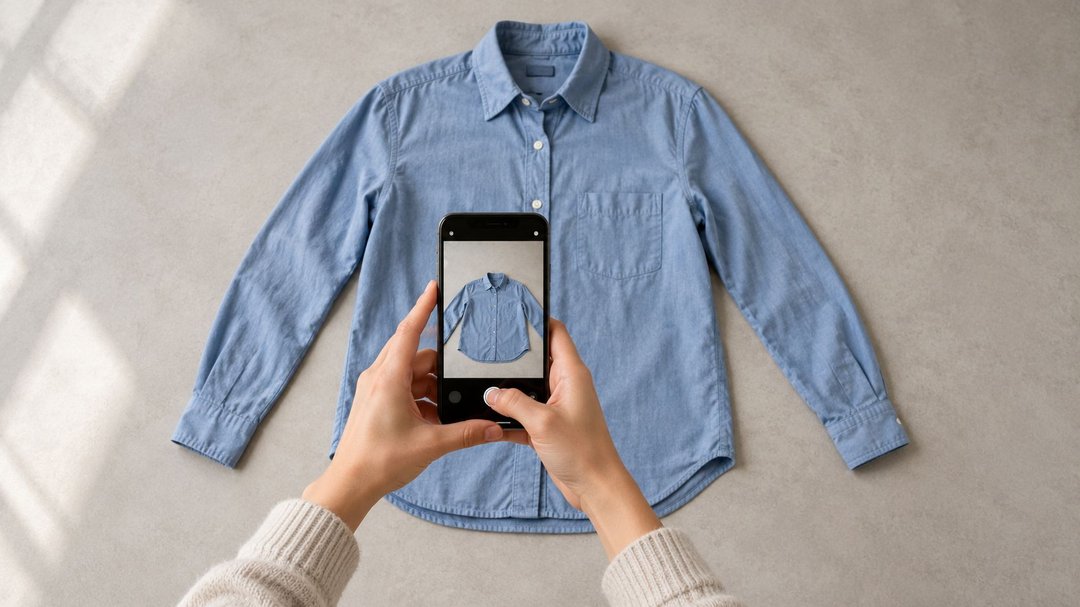
To photograph clothes for your digital closet, capture one item at a time against a plain background, with even lighting and the whole piece visible. Check that you can recognize its color, shape, and distinguishing details. Then review the saved image and item information before moving on.
Your phone is a practical place to start. The aim is to create clothing photos you can use when finding pieces and comparing outfits.
A useful photo should answer a simple question: “Which item in my closet is this?”
Here’s a repeatable process, including what to do when dark colors, long garments, or automatic image processing cause problems.
1. Choose a small group and take one test photo
Pick a few pieces you want to use soon. Include something straightforward, such as a familiar T-shirt, and one item you find harder to photograph.
Before arranging the whole group, photograph the first piece and add it to your chosen app.
Check the complete process:
-
Can you see the whole item?
-
Does its color look recognizable?
-
Are important details still visible after uploading?
-
Can you correct the information attached to it?
This first test can reveal a problem before you repeat it across several photos.
If you are still deciding which clothes to add, our guide to creating a digital closet without uploading everything explains how to choose a manageable starting selection.
2. Set up a place where the item is easy to see
Use a clear surface or a suitable hanging space. Remove other clothes and objects from the area around the piece.
Choose a plain background that makes the garment’s edges visible. A white shirt can disappear against a white surface; a dark sweater can be difficult to separate from a dark background.
You can change the background for a difficult item. Your whole catalog does not need to be photographed against the same sheet.
Look at the light across the garment. If one side is bright and the other is heavily shaded, move the item or change your position before taking the photo.
Indirect window light is a useful starting point. If daylight and a nearby lamp give different parts of the clothing different color casts, try using one source and compare the result.
At night, use the most evenly lit setup available and review a test photo. You do not need to wait for a particular time of day if your current setup produces a clear, recognizable image.
3. Choose a position that shows the garment
Follow your app’s photo instructions first. Different tools may favor different kinds of images.
For your own clothing record, consider what each method lets you see:
| Method | Useful starting point | What to check |
|---|---|---|
| Flat lay: garment on a flat surface | T-shirts, knitwear, pants, and pieces that spread out easily | Sleeves, waistband, and hem remain visible |
| Hanging | Longer pieces or clothes whose outline is easier to show vertically | The hanger supports the piece without pulling it out of shape |
| Photo while wearing the item | A separate reference for fit or styling | Other garments do not obscure the item you want to record |
| Detail photo | A distinctive fastening, print, or texture | Keep it associated with the main item where your tool allows |
A photo of a complete outfit has a different job from a photo of one garment. It helps you remember a combination. The individual item photo helps you identify and reuse that piece.
Arrange the garment without changing what it is
Unfold the clothing and uncover details you need to recognize later.
Check for a sleeve tucked underneath, a folded hem, or a belt hiding part of the waist. Smooth out folds that conceal the outline.
You do not need to remove every small wrinkle. Put your effort into anything that changes your understanding of the piece.
Avoid pulling stretchy clothing wider or longer just to make the photo look tidy. Let the item rest naturally.
For a long dress that will not fit comfortably in your flat-lay setup, try a suitable hanging position. Choose an arrangement you can photograph without awkward reaching.
4. Frame the whole item
Leave a little space around the garment so the edges remain inside the image.
Before taking the photo, check:
-
Neckline and shoulders.
-
Both sleeves, if present.
-
Waistband.
-
Full hem or pant legs.
-
Straps, ties, or other identifying details.
For a flat lay, keep the phone as parallel to the surface as you comfortably can. For a hanging item, aim toward its center rather than photographing sharply upward or downward.
Look at the image itself: does one end appear unusually large or small? If so, adjust the camera position and try again.
Keep the phone steady and check focus before putting the garment away. If the photo looks hazy, inspect and gently clean the camera lens.
Avoid decorative filters that change the clothing’s appearance. Your catalog is more useful when the image remains close enough to the real item to identify it.
5. Check color against the actual clothing
Keep the garment beside you while reviewing the photo.
Ask whether the image preserves the differences that matter in your wardrobe:
-
Can you distinguish navy from black?
-
Can you tell cream from bright white?
-
Are the main colors of a print recognizable?
-
Does a shiny surface hide a large area of the fabric?
You are making a practical visual record, not measuring fabric color. Phone processing, room lighting, and screen settings can all affect what you see.
If a color looks misleading, change the light or position and take another photo before making large editing adjustments.
A useful name also helps. “Navy straight-leg pants” gives you information that a small thumbnail may not show clearly.
Try the similar-item test
If you own two pieces that look alike, photograph both using your current setup.
Then view the saved entries at the size you normally browse them.
Can you tell which is which?
If not, identify the missing clue. It might be a pocket, collar, sleeve length, print, or fabric detail. Improve the image if that clue is hidden, and add a clear name or note where supported.
6. Adjust the approach for difficult pieces
Some clothing needs a second attempt. Change one thing at a time so you can see what helps.
| Problem | First adjustment to try | What to inspect afterward |
|---|---|---|
| A dark item looks like a solid shape | Improve the light reaching the garment | Seams and outline are visible |
| A light item blends into the surface | Use a contrasting plain background | Sleeves and hem are distinguishable |
| A shiny patch hides the fabric | Move the item relative to the light | The bright reflection no longer obscures a large area |
| A long garment is cut off | Change the setup or camera distance | The full length is visible |
| A print becomes unclear in the thumbnail | Keep a clear whole-item image and add a detail view if supported | You can identify the pattern when needed |
| A strap or tie disappears after processing | Compare the processed image with the original | Important parts are still present |
| Two similar pieces look identical | Show their distinguishing detail and improve the labels | You can select the intended item |
For shoes, choose a view that lets you recognize the pair and the details relevant to your outfits. Keep track of a pair as one wardrobe entry if that is how your catalog works.
For a bag, make sure its overall shape and identifying features are visible. A close-up of a logo alone will not show whether you are looking at your small shoulder bag or a larger tote.
7. Review the uploaded image and suggested details
Check the image after it enters the app. The version in your photo library and the version shown in the catalog may differ.
If the app crops, removes a background, or otherwise processes the image, inspect the result. Look for missing edges, altered details, or parts of the background that remain attached.
A cleaner-looking image is useful only if you can still identify the actual item.
In Modesona’s Smart Scan, you can photograph a garment or choose an image from your library. The app proposes item details for you to review before saving.
Check the suggested category, colors, and style. Correct anything that does not match your clothing. Better lighting can make a photo easier to read, but it does not guarantee correct classification.
After saving, open the item in your digital closet. Confirm that the image is recognizable and the information will help you find the piece again.
8. Decide: use it, correct it, or retake it
You do not need to keep improving every photo indefinitely.
Use this decision guide:
Use it
Keep the image when:
-
The item is recognizable.
-
The full shape is visible.
-
Its color is useful for distinguishing it.
-
Small imperfections do not interfere with browsing.
A background that looks different from your other photos is not automatically a reason to start again.
Correct the record
Edit the information when the image is clear but the category, color label, or name is wrong.
For example, a recognizable photo of navy pants does not need retaking simply because the app labeled them black.
Retake it
Take another photo when:
-
Part of the garment is missing.
-
Blur prevents recognition.
-
Lighting makes it look like a different item.
-
Important details are hidden.
-
Processing has removed a feature you need.
If you took a better photo of an existing item, use the app’s update process where available. Avoid accidentally recording the same physical garment as two separate pieces.
A worked example: two pairs of dark pants
Imagine you own black cropped pants and full-length navy pants.
In the first photos, both look black. One image also cuts off the hem.
Start with the problem you can see:
-
Reposition the pants so the waistband and full hem fit in the frame.
-
Adjust the light and compare another photo with the actual fabric.
-
Check both images in the catalog.
-
Name the entries “Black cropped pants” and “Navy full-length pants.”
-
Correct any mistaken color or category labels.
Now try finding the navy pair without opening every entry.
If you can select the right pants and see their full shape, the photos are doing their job. You can move on to another piece.
Keep the process easy to repeat
Finish each small group before starting another:
-
Photograph the item.
-
Review the image.
-
Add or update the record.
-
Correct its details.
-
Check it in the catalog.
Keep the original photo while you assess the result. That gives you something to compare with a processed version.
Next time you need an uncataloged piece, use the same basic process. Adjust the setup only when that item needs a different approach.
Once the photos are useful, try creating an outfit from clothes you already own. Working with the items can reveal whether a missing detail actually matters.
Your clothing photo checklist
Before putting the piece away, check:
-
One item is clearly identifiable.
-
The entire garment is visible.
-
The outline is easy to distinguish from the background.
-
The photo is sharp enough to recognize details.
-
The color is useful rather than misleading.
-
Important features remain visible after uploading.
-
The category and labels match the real piece.
-
Similar items can be distinguished.
-
You have not created an unintended duplicate.
Frequently asked questions
Do I need a professional camera?
Start with your phone and inspect the results in the app. A clear, recognizable image is the relevant test. You can improve the setup before considering any additional equipment.
Is flat lay clothing photography always best?
It is a useful option, especially for pieces that are easy to arrange on a surface. A hanging photo may be more practical for another garment. Follow the app’s guidance and choose a method that shows the complete piece clearly.
Does every photo need a white background?
No. Use a plain background that makes the item easy to distinguish. Light clothing may need a different background from dark clothing.
How many photos should I take per item?
Start with one clear whole-item image. Add another view only when it provides useful information and your tool supports it. A detail image should not replace the main view of the garment.
Can I use an old outfit photo?
It may help you remember how you wore the item. For an individual catalog entry, check whether the garment is fully visible and can be separated from the rest of the outfit. Take a new item photo if the important details are obscured.
Why did the app identify my clothing incorrectly?
An image may not clearly show a color, pattern, or cut, and automated classification can still make mistakes with a clear photo. Review the suggested details and correct them. Retake the photo when the image itself is misleading.
Finish with a photo you can use
Choose one familiar piece and take a clear photo of the whole item. Check the uploaded result, correct its details, and find it again in your catalog.
That gives you a working process for the next piece.
Use Smart Scan to add and review your clothing, then turn useful combinations into saved outfits you can return to. The photos have served their purpose when they help you recognize your clothes and decide what to wear.